MEDTECH · PATIENT EDUCATION
Designing for Patient Independence
The Design Challenge
Medical device users may encounter unfamiliar tasks or connectivity issues after initial setup. When instructions are difficult to navigate, patients may struggle to identify the next action or complete a task independently.
The challenge was to design a concise, visually guided resource that patients could quickly reference without navigating lengthy instructions or relying on prior technical knowledge.
The solution needed to prioritize clarity, accessibility, and ease of use while accounting for differences between iPhone and Android interfaces.
My Design Approach
I approached this project with a focus on helping patients complete unfamiliar device tasks independently, using clear instructions and intuitive visual guidance.
1. One Action Per Step
Each numbered step contains one specific action. Separating actions helps patients follow instructions sequentially without having to interpret multiple directions at once.
2. Align Instructions With the User Interface
Every step includes a corresponding UI visual positioned directly above its instruction. The visual shows patients exactly where to look and what action to take, reducing the need to interpret written directions alone.
3. Direct Attention Through Visual Design
I highlighted relevant buttons, icons, and settings while de-emphasizing surrounding interface elements. This preserves the context of a recognizable phone screen without allowing unnecessary visual details to compete for attention.
4. Reduce Cognitive Load
I used concise, action-based language, consistent layouts, and purposeful visual emphasis to minimize extraneous cognitive load. The goal was to make each action easy to identify, understand, and complete.
5. Design for Platform Differences
Rather than forcing identical instructions across devices, I developed separate iPhone and Android guides. Each follows its respective UI navigation sequence while maintaining a consistent instructional structure and visual design.
The Solution
I developed a patient-facing Quick Glance Guide for the fictional ClarityCare BP Monitor, demonstrating how concise instructions and intuitive visuals can support patients completing device-related tasks independently.
The guide focuses on reconnecting the monitor through a mobile device. Separate iPhone and Android versions reflect the navigation sequence of each platform, rather than forcing both experiences into identical steps.
Each numbered action is paired with a corresponding user interface (UI) visual. Relevant buttons and settings are highlighted, while surrounding elements are de-emphasized to help patients focus on the next action without losing the context of the screen.
The resulting design is a concise, visually guided performance-support resource intended to make unfamiliar tasks easier to navigate.
Portfolio demonstration using a fictional medical device. Not intended as actual patient instructions.
Guide Visuals
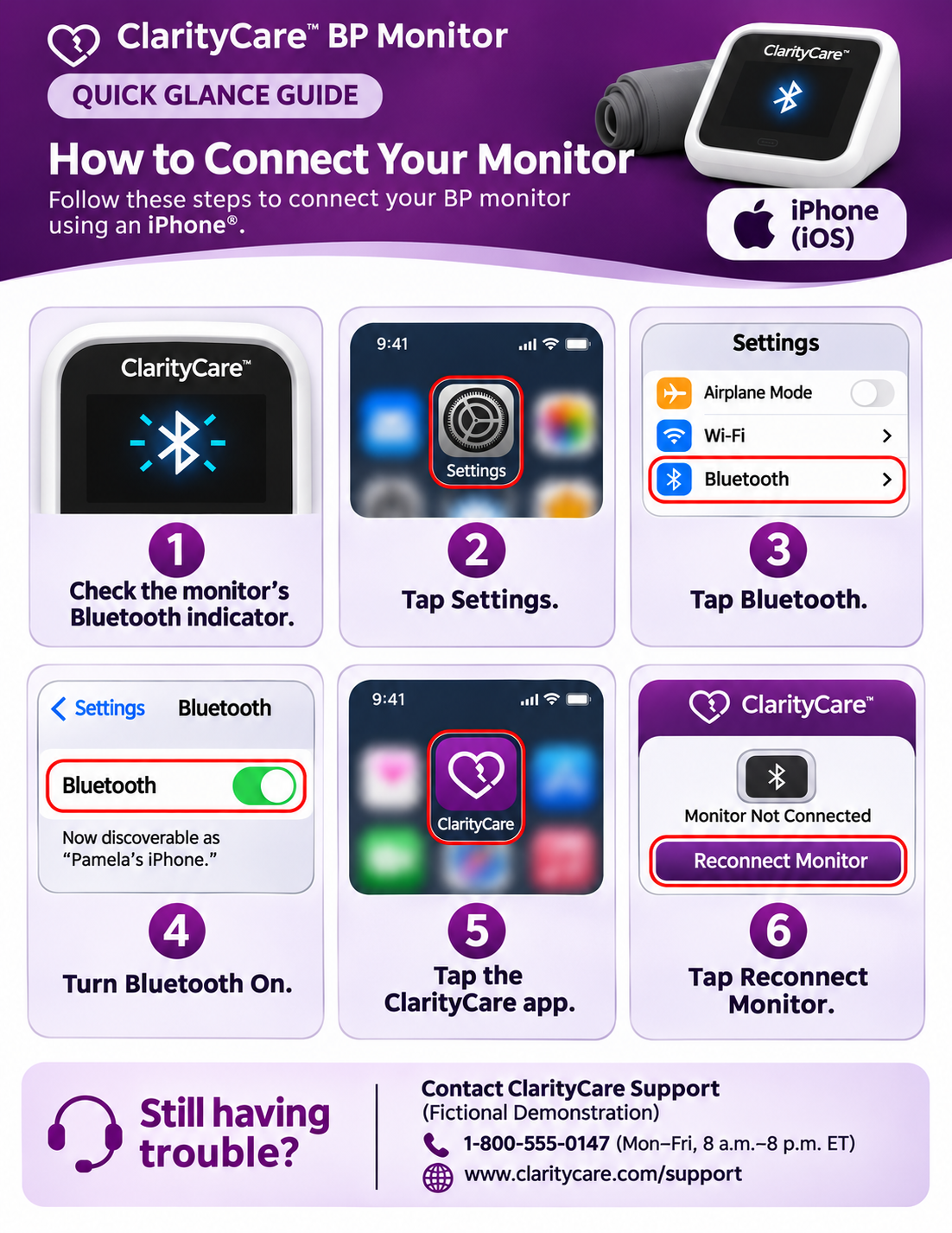 Enlarge iPhone Guide
Read iPhone Guide Instructions
ClarityCare™ BP Monitor
QUICK GLANCE GUIDE
How to Connect Your Monitor
Follow these steps to connect your BP monitor using an iPhone®.
iPhone (iOS)
- Check the monitor’s Bluetooth indicator.
- Tap Settings.
- Tap Bluetooth.
- Turn Bluetooth On.
Screen text: Now discoverable as “Pamela’s iPhone.”
- Tap the ClarityCare app.
- Tap Reconnect Monitor.
Screen text: Monitor Not Connected
Reconnect Monitor
Still having trouble?
Contact ClarityCare Support
(Fictional Demonstration)
1-800-555-0147 (Mon–Fri, 8 a.m.–8 p.m. ET)
www.claritycare.com/support
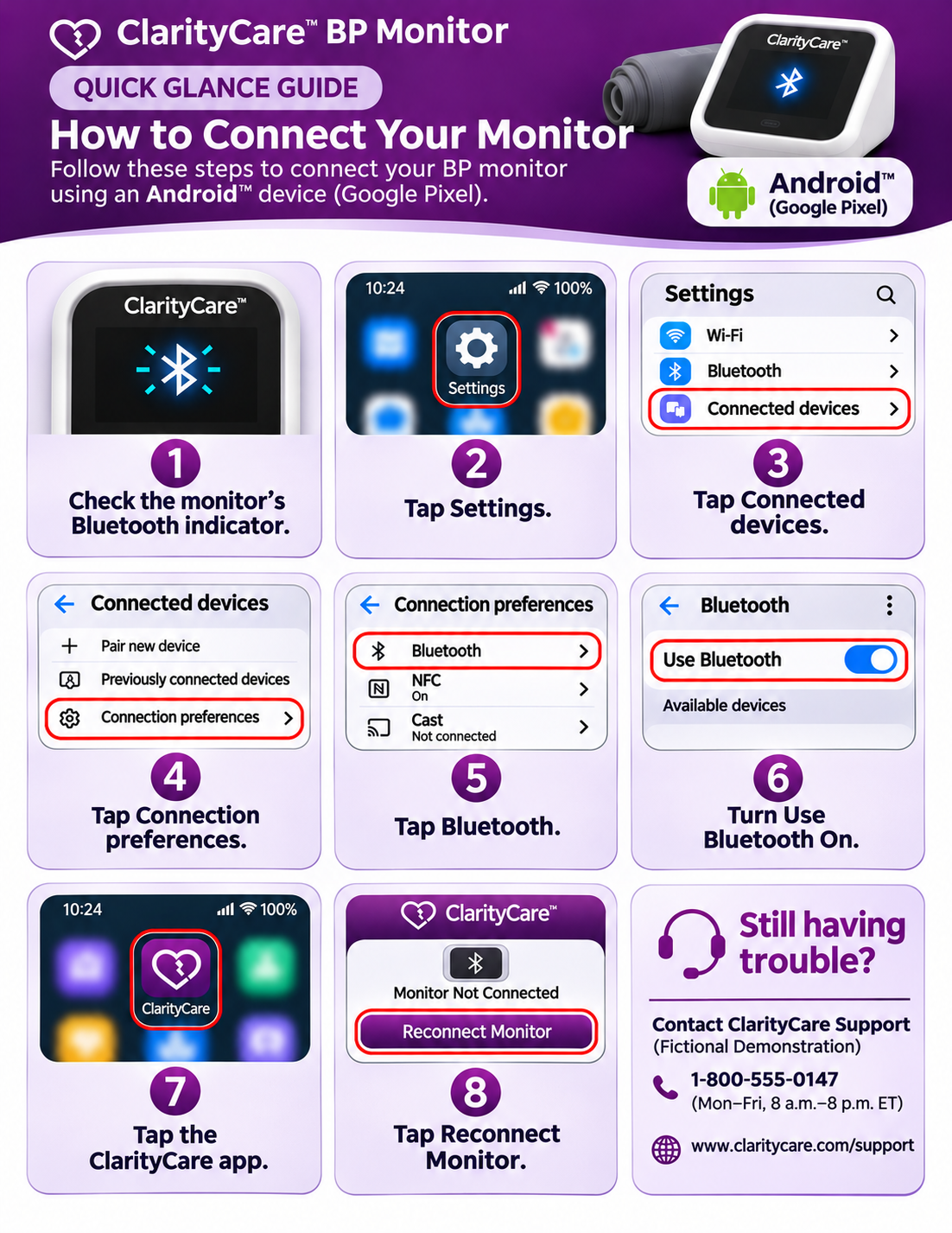 Enlarge Android Guide
Read Android Guide Instructions
ClarityCare™ BP Monitor
QUICK GLANCE GUIDE
How to Connect Your Monitor
Follow these steps to connect your BP monitor using an Android™ device (Google Pixel).
Android™ (Google Pixel)
- Check the monitor’s Bluetooth indicator.
- Tap Settings.
- Tap Connected devices.
- Tap Connection preferences.
- Tap Bluetooth.
- Turn Use Bluetooth On.
- Tap the ClarityCare app.
- Tap Reconnect Monitor.
Screen text: Monitor Not Connected
Reconnect Monitor
Still having trouble?
Contact ClarityCare Support
(Fictional Demonstration)
1-800-555-0147 (Mon–Fri, 8 a.m.–8 p.m. ET)
www.claritycare.com/support
Design Reflection
This project demonstrates how thoughtful instructional design can transform a complex, multi-step technical process into a clear, accessible performance-support resource.
By combining concise action-based instructions, purposeful visual emphasis, and platform-specific navigation, I designed the guides to support patient independence while minimizing unnecessary cognitive demands.
The project also reflects my broader approach to learning strategy and experience design: begin with the performance need, understand the user's context, and create practical solutions that help people take action.
The goal isn't simply to provide information. It's to make that information usable when someone needs it most.
This fictional portfolio demonstration illustrates my design process and intended benefits; it does not represent measured patient outcomes.
Let's Connect
Interested in how I approach learning strategy, instructional design, and performance support? I'd welcome the opportunity to connect.
Get in Touch